Windows Live Captions not working? Fixes for 5 common problems

Find your problem:
- Live Captions isn’t on your PC
- It’s stuck setting up, or can’t download language files
- The window is open but shows no captions
- It won’t translate
- It lags, skips or deletes words, or says “Captions are being missed”
Live Captions isn’t on your PC
- Check your Windows version. Live Captions needs Windows 11, version 22H2 or later. Press Windows + R, type
winverand press Enter. On Windows 10 it isn’t available at all; see how to get live captions on Windows 10. - Check for an “N” edition. If Settings → System → About shows an edition ending in N, such as “Windows 11 Pro N”, Live Captions needs the Media Feature Pack. Install it from Settings → Apps → Optional features → View features, then restart. Microsoft notes that some features may still not work properly afterwards.
- Turn it on. Press Windows + Ctrl + L, or open quick settings from the network, volume or battery icon on the taskbar and select Live captions.
It’s stuck setting up, or can’t download language files
The first time you turn it on, Live Captions downloads speech files through the Microsoft Store. If it shows “We can’t download the required language files right now”, Microsoft says the PC most likely can’t reach the Store, even if the rest of your internet works.
- Open the Microsoft Store and try downloading any app. If downloads are stuck, go to Library and select Get updates, then resume or restart the speech pack download.
- On a work or school PC, your IT team may have blocked the Store. Ask them to deploy the speech pack, or install it yourself from the download table on Microsoft’s troubleshooting page.
- Restart once the download finishes, then turn Live Captions on again.
The window is open but shows no captions
- Check your default sound device. Live Captions captions only the default output in Settings → System → Sound. If you’re listening through a headset or monitor that isn’t the default, the window stays empty. Make that device the default.
- Match the caption language to the speech. In the Live Captions window, open the settings gear and select Change language (Caption language on Windows 11 23H2 and earlier).
- Captioning your own voice? Open the gear, select Preferences and turn on Include microphone audio. Computer audio takes priority, so your microphone is only captioned when nothing else is playing.
It won’t translate
- Translation needs a Copilot+ PC running Windows 11 24H2 or later. On any other PC the option doesn’t exist; see how to translate Windows Live Captions without a Copilot+ PC.
- On a Copilot+ PC, translation appears only when the output language is English (United States) or Chinese (Simplified). Set it with Change language.
- Install pending Windows updates, including drivers. Microsoft says Copilot+ PCs need the latest drivers for translation to work properly.
It lags, skips or deletes words
Live Captions runs on your PC’s processor, so how busy your computer is matters. When it can’t keep up, it may tell you so:
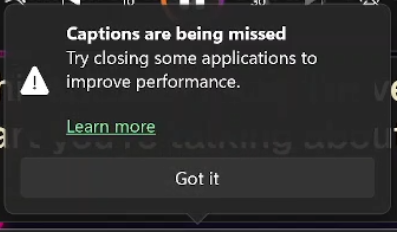
We ran it on a Surface Book 2 with several other apps open and a screen recorder capturing at 60 frames a second. Its captions slid up to 20 seconds behind the speech, then jumped forward, skipping everything in between. Four times it also deleted text it had already shown:
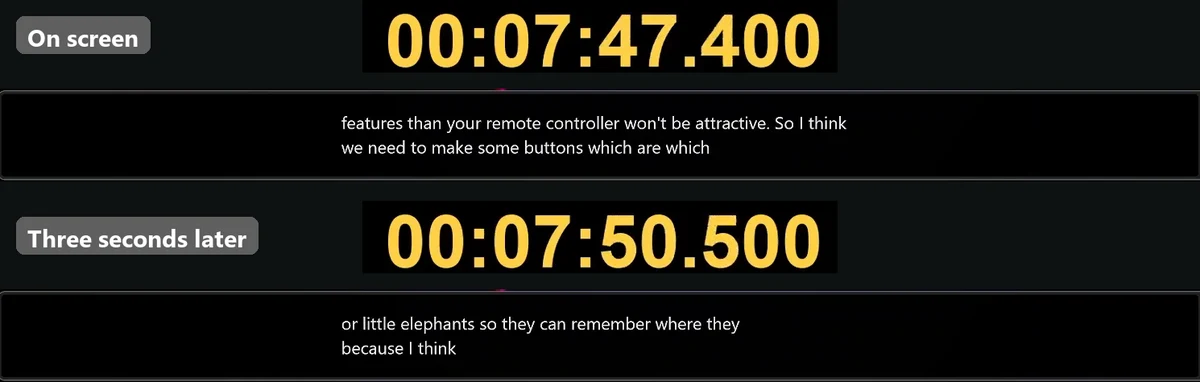
With the other apps closed and the recorder at 30 frames a second, it stayed about a second behind. What helps:
- Close apps you don’t need, especially browsers with lots of tabs, games and screen recorders.
- Plug in and use Best performance: Settings → System → Power & battery → Power mode.
- Restart Live Captions: close the caption window, then press Windows + Ctrl + L to reopen it.
If it misses words even when it’s keeping up, check that the caption language matches the speech. Difficult audio, such as people talking over each other or a microphone far away, can also cause missing words. In our test, Live Captions never showed 43% of the words on difficult meeting audio, against 23% for Hearica.
If you need captions that just work
Hearica captions everything your PC plays, on Windows 10 and 11, and saves each session as a transcript with audio. Its recognition runs in the cloud, and in our test its accuracy was the same whether the laptop was busy or not. The free plan includes 60 minutes a month.