Windows Live Captions alternative, tested on real meetings
Windows 11 comes with free live captions. So why would anyone pay for a captioning app? We tested both on the same 18 minutes of recorded meetings, at the same time, on the same laptop.
The short version
- Difficult speech, with people talking over each other and a microphone across the room: Hearica made 30% fewer errors. On the hardest clip, Windows left out more than two-thirds of what was said.
- Clear speech: both got about 95 words in every 100 right, but only Hearica did it in both of our test runs.
- On a busy laptop, Windows fell up to 20 seconds behind and skipped whole sentences. Hearica’s accuracy didn’t change.
- Beyond the captions, Hearica saves transcripts, lets you scroll back and copy, translates as you listen, and works on Windows 10 as well as 11.
| Hearica | Windows Live Captions | |
|---|---|---|
| Clear speech | About 5% errors in both runs | 4.9% errors in one run, 12.7% in the other |
| Deliberately difficult speech | 32.8% errors | 47.0% errors |
| On a busy laptop | Results unchanged | Fell up to 20 s behind |
| Saved transcripts and export | Yes | No |
| Scroll back and copy | Yes | Live view only |
| Live translation | 60 languages, any PC | Copilot+ PCs only, into English or Chinese |
| Windows versions | Windows 10 and 11 | Windows 11, 22H2 or later |
| Custom vocabulary | Context profiles (paid plans) | No |
| Works offline | No, needs internet | Yes |
| Price | Free plan, then paid plans | Free, built in |
How we tested
We played six three-minute clips of real recorded meetings from the AMI Meeting Corpus to both apps at once on a Surface Book 2: three clear clips with headset microphones, and three difficult ones recorded on a single microphone in the middle of the room. Then we counted every word each app got wrong, left out or added, compared with the human transcript. Method and data are in the full benchmark report.
Clear speech: both near-perfect, but only Hearica stayed that way
On one person speaking clearly into a headset microphone, both apps got about 95 words in every 100 right. The difference showed between our two test runs:
| Errors on clear speech (1,315 words) | Run 1: busier laptop | Run 2: fewer apps open |
|---|---|---|
| Hearica | 65 | 67 |
| Windows Live Captions | 167 | 65 |
Hearica’s results were nearly identical both times. Windows matched it only when the laptop had little else to do. And even when Windows keeps up, its captions are gone once they scroll away, which matters for a lecture you’ll want to go back over.
Difficult speech: 30% fewer errors
Real meetings are rarely that tidy.
| Difficult clips | Hearica | Windows Live Captions |
|---|---|---|
| Clip 1 | 37.2% | 52.9% |
| Clip 2 | 35.1% | 71.7% |
| Clip 3 | 27.5% | 28.5% |
| All three (1,970 words) | 32.8% | 47.0% |
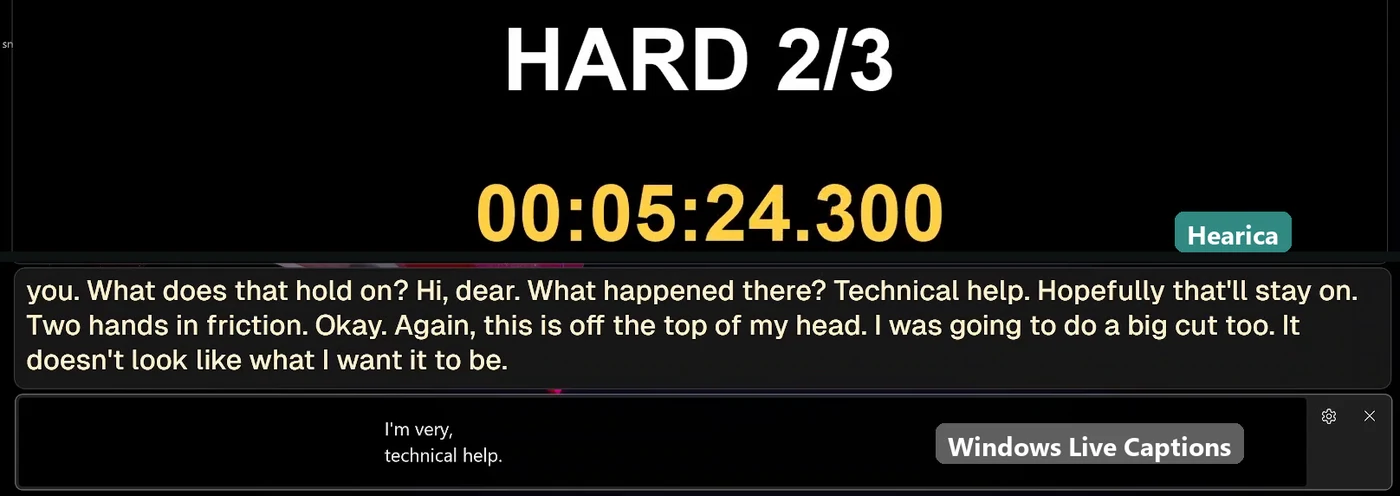
Most of Windows’ errors were missing words: it never showed 43% of what was said, against 23% for Hearica. Here’s half a minute of clip 2, a design meeting where the team is sketching animals on a whiteboard:
What was said: “Oops, oh dear, what happened there?” “Technical help.” “Hopefully that’ll stay on, two-handed version. Okay. Again this is off the top of my head, I was gonna do a big cat too. Oh dear, it doesn’t look what like what I want it to be.”
Hearica: “What happened there? Technical help. Hopefully that’ll stay on. Two hands in friction. Okay. Again, this is off the top of my head. I was going to do a big cut too. It doesn’t look like what I want it to be.”
Windows Live Captions: “Technical help.”
Hearica gets a couple of words wrong (“big cut” for “big cat”), but you can follow the conversation. With Windows, you’d have missed it.
Why Windows slipped: it falls behind on a busy laptop
Windows Live Captions does all its speech recognition on your PC’s own processor. In our first run, with several other apps open and the screen recorder capturing at 60 frames a second, it couldn’t keep up, and Windows warned that “captions are being missed”. Its captions slid up to 20 seconds behind the speech, then jumped forward, skipping everything in between, and four times it deleted text it had already shown. Its overall error rate rose from 30.2% to 40.5%.
Hearica scored 21.7% both times. Its speech recognition runs in the cloud rather than on your laptop’s processor. If you use captions during video calls, with a browser full of tabs, or on an older machine, that matters.
What you get beyond accuracy
Microsoft says Live Captions aren’t stored anywhere, so once a line scrolls away, it’s gone. Hearica is built for people who rely on captions every day:
- Keep a transcript. Save a session and go back to what was said, with timestamps. Export to TXT or Word on Premium, and to PDF or SRT subtitles on Pro.
- Scroll back and copy. Missed a sentence? Scroll up in the caption window, copy what you need, then press Sync to live to catch up.
- Translate as you listen. Hearica captions 60 languages and translates live on any Windows PC. Windows Live Captions translates only on Copilot+ PCs, and only into English or Chinese.
- Use it on Windows 10. Windows Live Captions needs Windows 11, version 22H2 or later.
- Teach it your words. Add names, product terms and jargon to a context profile to help Hearica get them right (paid plans).
- Make captions easy to read. Set text size, weight, color, outline and background, and lock the window so clicks pass through it.
Which should you use?
If you’re on Windows 11, only ever caption one clear speaker on a PC with little else running, and never need to look back at what was said, Windows Live Captions will cover it.
For meetings, seminars and calls where people talk over each other, lectures you’ll want to review, translation, or Windows 10, try Hearica. The free plan includes 60 minutes of captions a month, so you can run both side by side on your own audio, like we did.
Download Hearica for Windows · See plans and pricing
Common questions
Is Windows Live Captions accurate?
On clear speech, when your PC isn’t busy, yes: in our test it got about 95 words in 100 right, the same as Hearica. With other apps open, it made 2.5 times as many errors on the same clips. On difficult meeting audio it missed far more: a 47.0% error rate, against 32.8% for Hearica.
Why does Windows Live Captions lag or skip words?
It runs entirely on your PC’s processor. In our test, with other apps open, it fell up to 20 seconds behind and then skipped ahead, dropping the speech in between. Closing other apps and lowering the screen recorder’s frame rate helped. Hearica’s speech recognition runs in the cloud, and its accuracy was the same in both runs. More in Windows Live Captions not working?
Does Windows Live Captions work on Windows 10?
No. It needs Windows 11, version 22H2 or later. Hearica works on Windows 10 and 11. See live captions on Windows 10 for all the options.
Can I save or export Windows Live Captions?
No built-in option. Microsoft says live captions aren’t stored anywhere. Hearica saves transcripts you can review later and export. More in how to save Windows Live Captions.
Can Windows Live Captions translate?
Only on Copilot+ PCs running Windows 11 24H2 or later, from over 40 languages into English, or from 27 into Simplified Chinese. Hearica translates live on any Windows 10 or 11 PC. See how to translate live captions without a Copilot+ PC.
Tested 7 October 2026 on a Surface Book 2. Test audio: AMI Meeting Corpus, AMI Consortium / University of Edinburgh, CC BY 4.0; six excerpts, each adjusted in volume. Windows facts from Microsoft’s Live Captions guide, checked 8 October 2026. Read the full benchmark report.