How to Save Mac Live Captions to a Text File
Short answer
Not with macOS alone. Live Captions has no save button, export or history. A free app called Interpres can save its text to a file as you go, as long as you start it before the conversation. For full transcripts you can search and replay, use a captioning app that keeps them, like Hearica.
Why there’s no save button
Live Captions is built for following along in the moment. Apple says audio is processed on your Mac, and its guide doesn’t mention any way to save the captions. In our test, each line was gone after about a minute, and the window hides itself when there’s no audio.
Save Live Captions to a text file with a free app
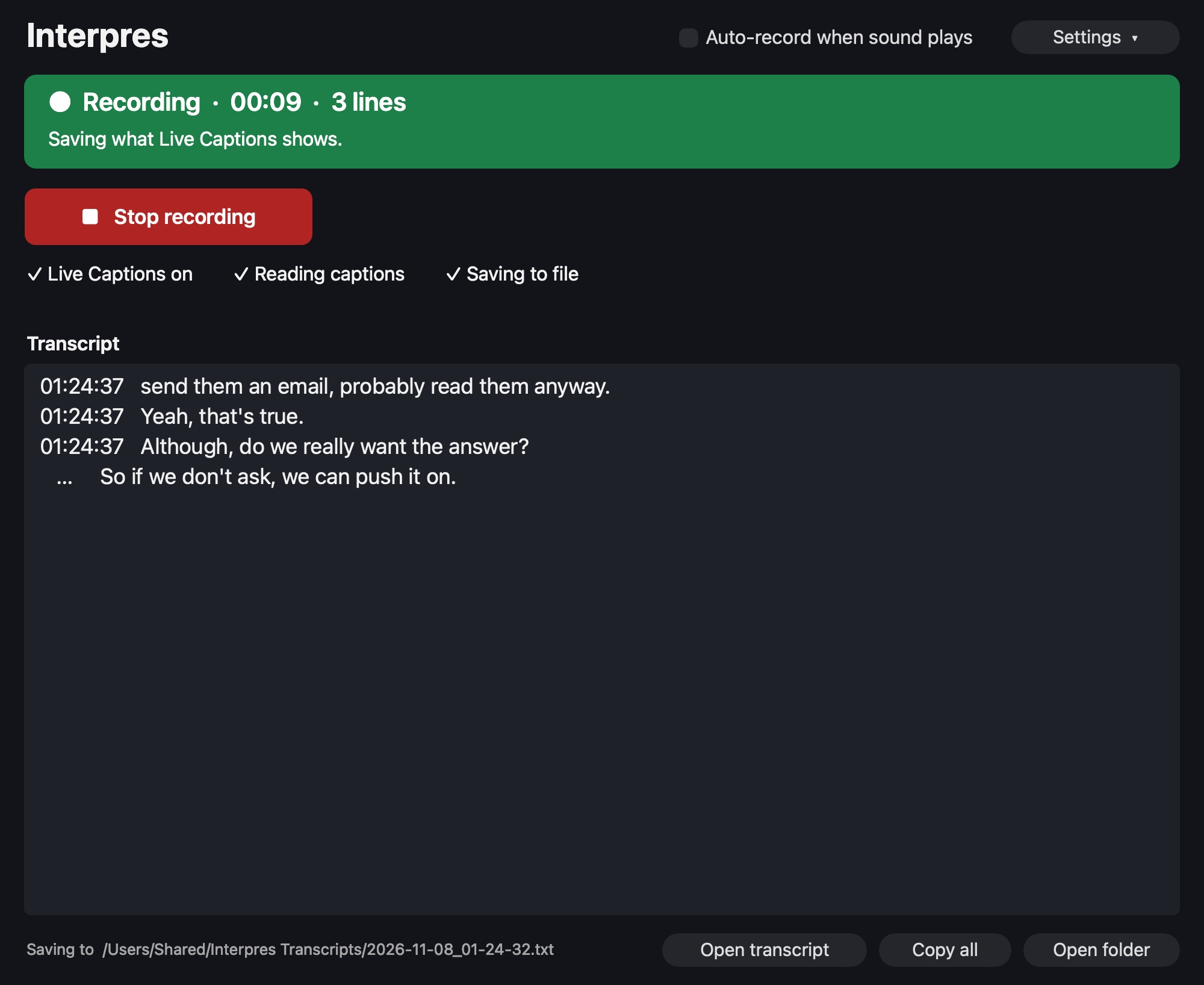
Interpres is a small, free, open-source app that reads the text from Live Captions and saves it to a TXT file, with a timestamp on each line. It needs a Mac with Apple silicon and macOS 13 or later.
- Download the Mac zip from its Releases page, unzip it, and move Interpres to your Applications folder.
- Open it. The first time, your Mac says it can’t check who made the app. Go to System Settings → Privacy & Security, scroll down and click Open Anyway.
- When your Mac asks for Accessibility permission, turn on Interpres in the list. If it isn’t listed, click + and choose it from Applications. On some newer versions of macOS, this list is called Device Control and Data Access.
- Turn on Live Captions in System Settings → Accessibility → Live Captions. Choose Computer Audio for a call or video on your Mac, or Microphone for people in the room.
- In Interpres, press Start recording before anyone starts talking.
- When you’re done, wait a moment for the last line to finish, then press Stop recording. Click Open transcript to see the file, or Copy all to paste the text somewhere else.
Each recording is saved as its own text file, named by date and time, in Documents → Interpres Transcripts. You can change the folder under Settings.
Tips from our test
We tried Interpres on an M1 Mac mini with recorded meetings, and it saved the text, including after a pause in the speech. A few things to know:
- Start it yourself. Interpres can start automatically when sound plays, but when we tried that, it missed the first few words. Press Start recording before the conversation begins.
- Let the last line finish. Live Captions keeps correcting its newest line. A word that appeared just before we pressed Stop wasn’t saved.
- Expect some tidying. Because Live Captions revises its text as it goes, Interpres sometimes saves two versions of the same sentence:
At the end never gave us any tests.
At the end, we’ll say, anyway, you never gave us any tests, okay?
It can also save a line slightly out of order, and it can only save what Live Captions shows: if Apple mishears a name or misses a sentence, the file will too. If it says it can’t read Live Captions, turn Interpres off and on again in the Accessibility list, especially after updating it. Interpres is an independent project, not made by us or Apple.
Other workarounds
| Workaround | The catch |
|---|---|
| Record your screen with the caption window visible | A video, not text, and Live Captions can show up as a grey box in screen captures |
| Use your meeting app’s transcript (Zoom, Teams, Meet) | Only that app’s meetings, and often only if the organizer turns it on |
Can you get back captions you didn’t save?
Usually not. There’s no history to open, so if nothing was saving, the earlier conversation is gone. Next time, start saving before it begins.
Get full transcripts automatically with Hearica
Hearica captions any sound on your Mac, like Live Captions, but keeps what it hears:
- Saved by default. Every session is saved as a transcript with timestamps, along with the audio.
- Fewer errors. In our test, it made 23% fewer errors than Live Captions on difficult meeting audio, so there’s more worth keeping.
- Search everything. Find a word or name across all your saved sessions.
- Replay with captions. Play the recording back with the captions in sync, to check exactly what was said.
- Scroll back during the session. Missed something? Scroll up in the caption window, copy it, then press Sync to live.
- Export when you need to. TXT or Word on Premium; PDF or SRT subtitles on Pro.
Audio is transcribed in the cloud, in a region you can choose where offered, while saved transcripts and recordings are stored on your Mac (see the privacy policy). The free plan includes 60 minutes a month.
Download Hearica for Mac · See plans and pricing
Tested 7–8 November 2026 with Interpres 0.3.6 on a Mac mini (M1) running macOS 27.2, using recorded meetings from the AMI Meeting Corpus (AMI Consortium / University of Edinburgh, CC BY 4.0). Apple’s statements are from its Live Captions guide, checked 8 November 2026.