Mac Live Captions Showing a Grey Box? What to Try
Short answer
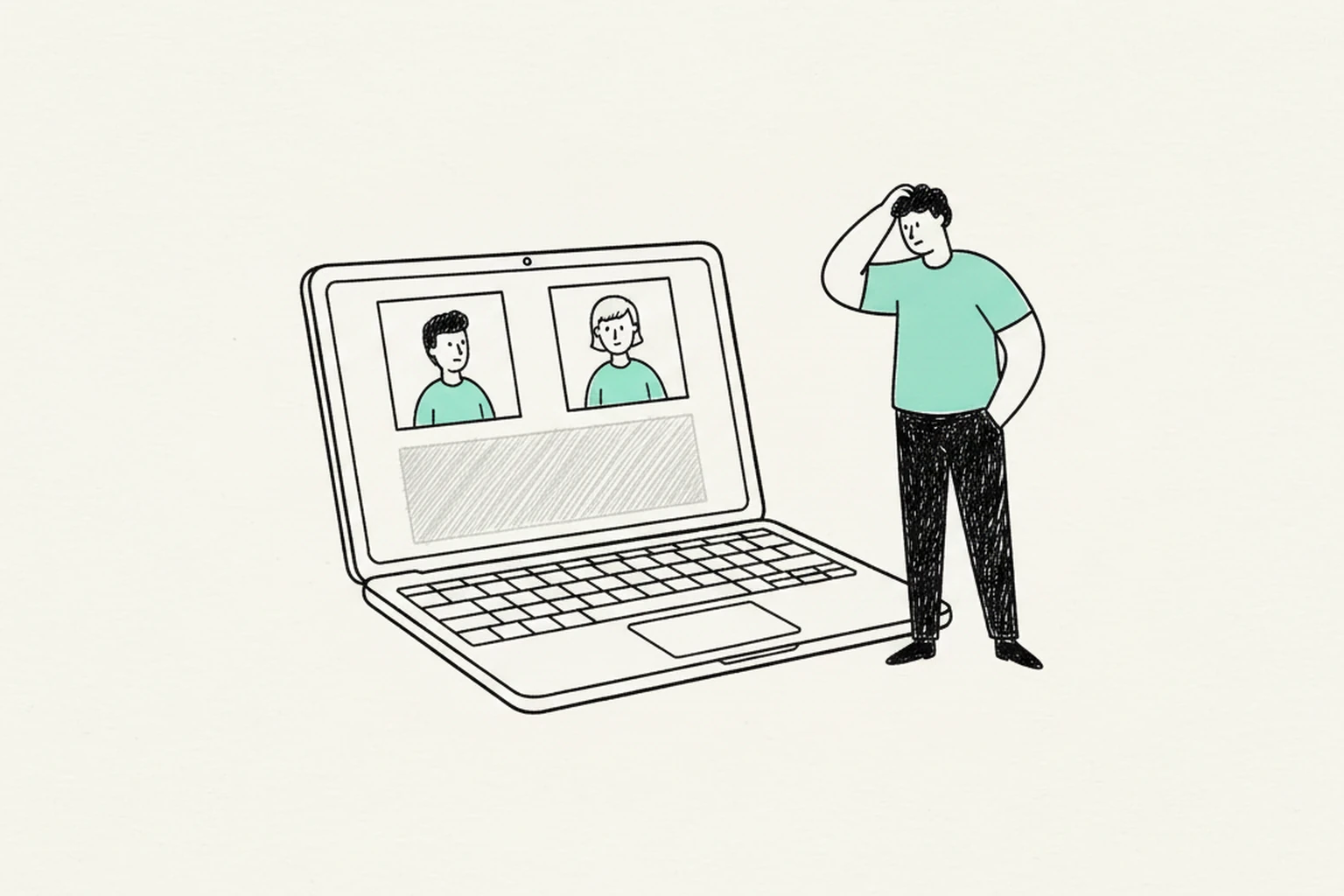
Live Captions turns grey when something is capturing your screen: a screen share, a recording, remote desktop, a DisplayLink dock or Sidecar. The captions keep running underneath. Below is what to try in each case, and how to keep the words.
Are the captions still running?
Yes. On our test Mac, which we used over remote desktop with Reemo, the Live Captions window was a grey box, with the last line showing through now and then. Screenshots taken on the Mac itself came out grey too. But the captions kept running underneath: macOS’s accessibility tools, the ones screen readers use, could still read the text.
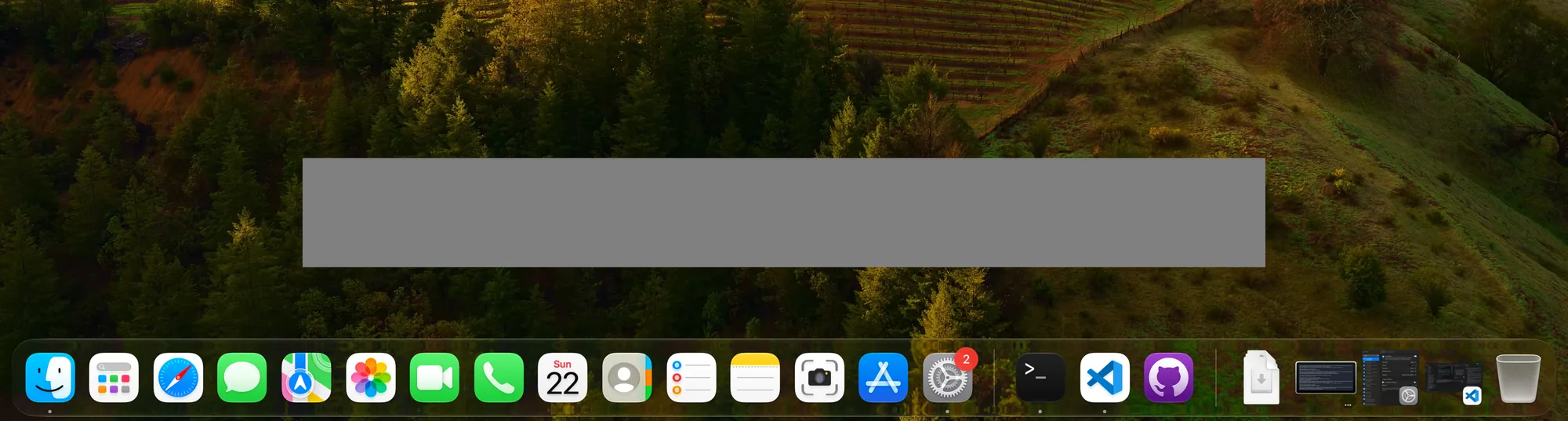
Apple doesn’t say why, and its Live Captions guide has no setting to change it.
What to try
| What you see | What to try |
|---|---|
| Grey while you share your screen in Zoom | Change Zoom’s screen capture mode |
| Grey on a monitor connected through a DisplayLink dock | Connect the monitor directly to your Mac |
| Grey while you use an iPad with Sidecar | Disconnect the iPad |
| Grey over remote desktop | No fix we know of, but you can still copy or save the words |
| The window disappears when the audio stops | That’s normal. Click the Live Captions icon in the menu bar and choose Keep Onscreen |
| The window is there but shows no text | Check the source in the same menu: Computer Audio for sound from your Mac, Microphone for people in the room |
During a Zoom screen share
In Zoom, open Settings → Share Screen → Advanced, and set Screen capture mode to Advanced capture with window filtering (not without). A deaf user who presents in meetings found this brought their captions back while sharing. To check it before a meeting that matters, start a Zoom meeting on your own, share your screen and play a video with speech.
With a DisplayLink dock
If your dock or adapter needs the DisplayLink Manager app, plug the monitor straight into your Mac instead. DisplayLink sends your screen to the monitor by recording it, DisplayLink says, which is likely why Live Captions turns grey there. In the DisplayLink forum, one user’s captions were grey with their dock connected but fine with the monitor plugged in directly, and another’s came back when they stopped DisplayLink Manager sharing their screen.
With Sidecar
Disconnect your iPad: open Control Center, click Screen Mirroring, and deselect your iPad. One user reports this brought their captions back.
Over remote desktop
There’s no clear fix. During our test, the window stayed grey the whole time, even though the captions were running.
You can still copy what Live Captions has caught in the last minute or so. Open Script Editor, in Applications → Utilities, paste this in, and click Run:
tell application "System Events" to tell process "Live Captions"
    set captionLines to value of every static text of UI element 1 of scroll area 1 of group 1 of window 1
end tell
set AppleScript's text item delimiters to linefeed
set the clipboard to (captionLines as text)
Then paste the captions wherever you like. The first time, your Mac asks for permission: allow it, turn on Script Editor in the settings that open, and click Run again. It only copies what’s still in the window, so to keep a whole conversation, save the words instead.
If other people need to see captions
Live Captions only shows on your own screen. People on a call can turn on the meeting app’s own captions: Zoom, Teams and Google Meet all have them. Or use a captioning app whose window shows up when you share your screen, like Hearica.
If you need to keep the words
Recording your screen won’t help: the recording shows the grey box too, and even if it didn’t, you’d get a video, not text you can search.
To keep using Live Captions, a free app can save its text to a file, even while the window is grey: see how to save Mac Live Captions. Or use a captioning app that saves every session for you.
Skip the grey box altogether
Hearica shows its captions in an ordinary window, so they stay visible when you share your screen, record it, or use remote desktop. No workarounds needed.
It captions any sound on your Mac, saves every session as a searchable transcript along with the audio, and in our test made 23% fewer errors than Live Captions on difficult meeting audio. The free plan includes 60 minutes of captions a month.
Download Hearica for Mac · See plans and pricing
What we saw comes from a Mac mini (M1) running macOS 27.2, used over remote desktop in November 2026. The script worked on that Mac; a macOS update could change it. The Zoom, DisplayLink and Sidecar fixes are other users’ reports. Apple’s statements are from its Live Captions guide, checked 8 November 2026.